Flexible, scalable, all-in-one Managed File Transfer (MFT) Server
Meet all your managed file transfer (MFT) and enterprise file sharing needs with a single, comprehensive solution built for both scalability and stability.
MFT server features you need
Whether you’re sharing internally or externally, JSCAPE by Redwood is a comprehensive file transfer software solution built to address the complex file movement needs and stringent security requirements of enterprise file transfers.
Secure file sharing
Safeguard your data and organization with proactive security measures, including end-to-end encryption and single sign-on (SSO) to help protect your data from breaches and compliance violations.
Large file sharing
Efficiently and securely move high-volume, time-sensitive large files, even those of terabyte scale, to support critical business operations.
File transfer automation
Streamline enterprise-wide standardization initiatives and reduce custom workarounds by automating repetitive tasks.
Automation workflows
Reduce complexity in current processes and free up IT resources for strategic work by eliminating manual tasks and custom scripting with JSCAPE’s library of low-code/no-code automation workflows and templates.
Cloud file storage integrations
Ensure interoperability across diverse and sprawling tech stacks with multiple vendors, including on-premises and SaaS, and seamlessly integrate with hybrid cloud environments.
Key vault integrations
Centralized key management eliminates the need for additional middleware and enhances security for sensitive credentials across the entire organization with built-in integrations for Azure Key Vault, AWS Secrets and CyberArk Password Vault.

What is JSCAPE MFT Server?
Built in 1999, JSCAPE MFT Server by Redwood is a comprehensive MFT solution built for enterprise and commercial organizations that value robust security and automation efficiencies.
JSCAPE minimizes unplanned disruptions and costs for enterprise organizations through its predictable quarterly release cycle, forecastable pricing and regular security testing, ensuring users have a reliable MFT solution for years to come.
Any file transfer protocol, any platform
JSCAPE MFT Server is platform-independent and works with a variety of operating systems, including Windows, MacOS, Solaris and Unix.
It supports any protocol and can handle multiple protocols within one server, such as:
Plus, your experts can build any needed connections using JSCAPE’s REST APIs.
This flexible interoperability across diverse platforms and environments is crucial for large organizations seeking enterprise-wide standardization and the consolidation of their disparate file transfer systems.


Meet complex compliance requirements with reverse proxy servers
JSCAPE MFT Gateway by Redwood enables you to easily add proxy servers in your DMZ and helps you meet HIPAA, PCI DSS, SOX, GLBA and other data security requirements. Its two-factor authentication, granular access permissions and SSO offer visibility into all end-user and administrative activity, including full audit trails to maintain cybersecurity at all points, which is a requirement for compliance in many industries.
How to use JSCAPE MFT Server
No matter your sector or compliance needs, JSCAPE MFT Server can help you securely
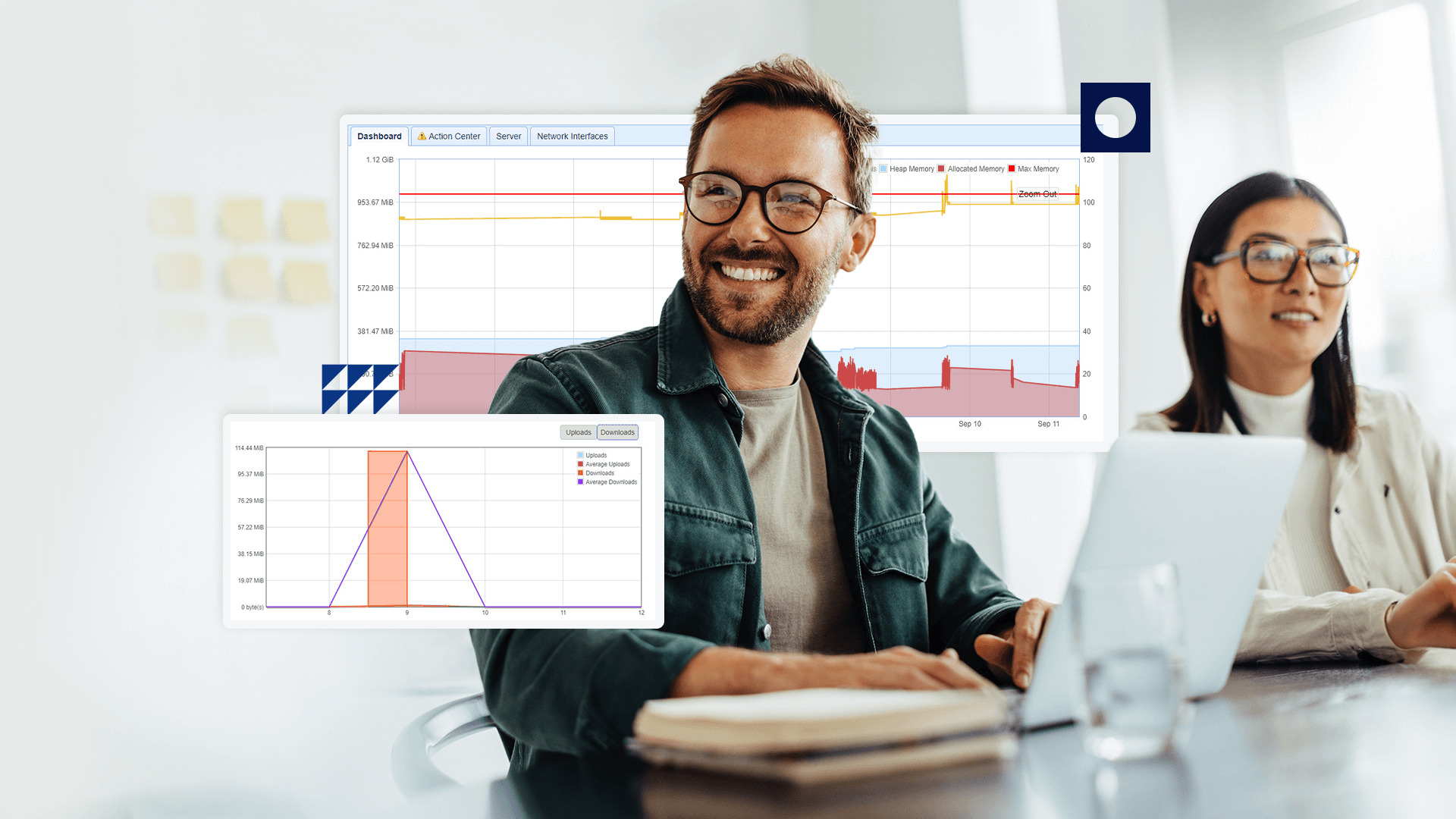
share data and consistently monitor your organization’s file transfer activity.
Financial services
JSCAPE MFT Server is a great tool for financial organizations that need to share files that contain sensitive information while keeping visibility across systems.
Healthcare
JSCAPE MFT Server offers features that meet the stringent demands of the healthcare industry and can help you meet both security and data privacy requirements.
Government
JSCAPE MFT Server is perfect for government agencies, departments, contractors and other similar organizations with its interoperability across systems.
Automate your file transfers
Eliminate custom workarounds for recurring file transfer processes by leveraging JSCAPE’s no-code/low-code automation workflow templates.
Improve both your efficiency and performance through automated workflows, reducing manual work and helping large organizations use their resources more effectively.

Enjoy a proactive support model
Get the advice you want, the help you need and the transformative partnership that will drive your business forward with JSCAPE’s expert support and customer success teams.
With 24/7 global support and deep product expertise, JSCAPE provides consultative help and innovative problem-solving when others don’t, plus our follow-the-sun support means you always get quality, comprehensive answers to questions, no matter the time of day.

“The JSCAPE MFT Server solution was easy to implement and manage, especially with JSCAPE’s personal support and online blog, answers to questions about the software came to us easy.”
— Eddie Mendoza, CFO
MFT server FAQs
What is an MFT server?
MFT servers are secure file transfer solutions that support a variety of common protocols to encrypt real-time data transfers. MFT is also used to execute ad hoc file transfers, maintain detailed auditing and protect data at rest with PGP and other encryption programs.
JSCAPE is a user-friendly MFT solution that supports all common protocols (SFTP, FTPS, HTTPS, TLS/SSL) and platforms, making it easy to share sensitive data with any trading partner at scale. Users can automate file transfer operations to streamline business processes that involve EDI and other data exchanges.
For large organizations, an MFT server like JSCAPE provides the crucial ability to consolidate disparate file transfer tools and processes across the entire enterprise, addressing challenges such as a lack of interoperability and complex data management.
What is the difference between an SFTP and MFT server?
SSH file transfer protocol (SFTP) is a secure file transfer protocol that encrypts data in transit using Secure Shell. It’s commonly used for point-to-point file transfers and supports basic functions such as authentication, file uploads/downloads and directory operations. SFTP servers are typically deployed for simple, secure file exchange between systems or with external partners.
An MFT server, on the other hand, is a comprehensive managed file transfer solution designed for handling complex file transfer workflows across an organization. MFT servers support multiple protocols (SFTP, FTPS, HTTPS and more), provide centralized control over user access and include features like automation, real-time monitoring, API integration and support for regulatory compliance standards like HIPAA, GDPR and PCI DSS. MFT software is built to meet business needs such as high-volume data movement, secure file sharing and integration with systems like Active Directory and Microsoft applications.
Why should you use an MFT server like JSCAPE?
An MFT server provides centralized control over file transfer processes while supporting multiple protocols like SFTP, FTPS and HTTPS. It allows organizations to automate workflows, manage user access and enforce policies for secure file transfer, authentication and compliance with mandates like HIPAA, PCI DSS and SOX. MFT solutions are designed to meet business needs for reliable data exchange between internal systems, external trading partners and cloud environments.
Unlike traditional FTP servers or ad hoc file sharing, MFT servers offer visibility, logging and encryption for sensitive data moving across diverse IT infrastructures. They support integrations with Active Directory, LDAP and API endpoints for better coordination with enterprise applications on Windows, Linux or hybrid platforms. MFT software is used to meet high-volume, real-time data movement demands while maintaining compliance requirements across file transfer protocols.
For large organizations, an MFT server like JSCAPE by Redwood becomes critical for proactive risk management and aggressive cost considerations. It helps control unpredictable MFT pricing and ballooning internal costs related to MFT personnel and infrastructure through its clear, non-variable pricing.
Blog
MFT servers explained
See why every business can benefit from using an MFT server.
Blog
SFTP vs. MFT solutions
Explore the differences and use cases for SFTP and MFT solutions.
Blog
What is managed file transfer?
Read more about what MFT is and how your enterprise can use it.
Blog
Simplifying MFT server clustering
Find out how easy it is to set up high-availability data clustering with MFT.