JSCAPE version 2026.2 now available | Download now.

Blog & newsroom
-
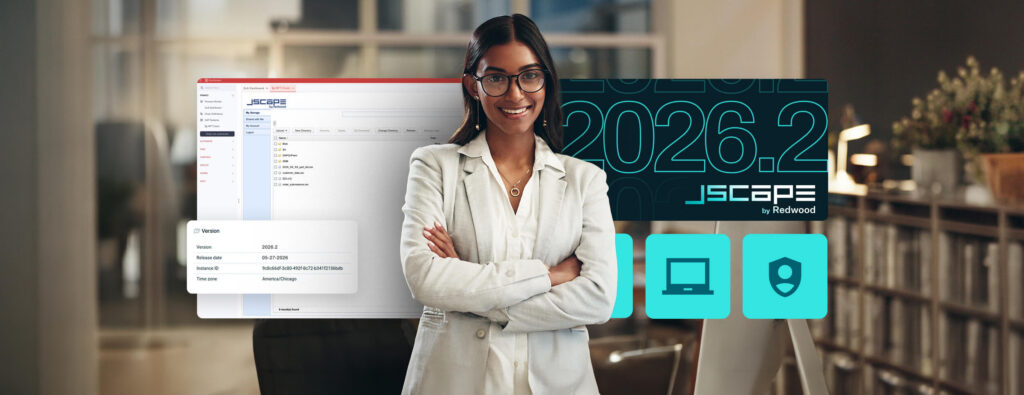
JSCAPE by Redwood 2026.2: Web client customization, security hardening and UI modernization
Dive into JSCAPE by Redwood version 2026.2, bringing the next wave of updates designed to make your file transfer operations more intuitive…
Learn More
-

Why your RISE with SAP strategy needs a high-performing file transfer foundation
Discover the hidden architectural gaps that are stalling RISE with SAP transformations mid-migration.
Learn More
-

Architecting for reality: Why the Future of MFT is hybrid
Build MFT infrastructure that adapts to the real world.
Learn More
-

JSCAPE by Redwood 2026.1: Continued UI updates and easier cloud scaling
The next wave of JSCAPE’s new UI and improved containerization is now available in 2026.1
Learn More
-

Stop paying the “complexity tax”: Consolidate MFT to fund innovation
Reclaim your budget, unify your operations and future-proof your growth.
Learn More
-

The 5-year horizon: Will your current file transfer solution survive the data explosion?
Future-proof your operations before your infrastructure becomes the bottleneck.
Learn More
-

The hybrid trap: Why vendor-agnostic MFT is your best insurance policy
Future-Proof Your Infrastructure. Break Free from Cloud Lock-In.
Learn More
-

Is your MFT solution bottlenecking your AI strategy?
Remove barriers and optimize your AI workloads for speed with purpose-built MFT
Learn More
-

How to build a zero trust MFT strategy that survives zero-days
Stop reacting to vulnerabilities. Start architecting for zero trust resilience
Learn More
-

How to transfer and download files using FTP
Learn more from the experts at JSCAPE by Redwood
Learn More
-

The vulnerability “zombie bite”: What if your vendor is patient zero?
Learn more from the experts at JSCAPE by Redwood
Learn More
-

The IT/OT divide: Is your enterprise blind to a critical threat?
Learn more from the experts at JSCAPE by Redwood
Learn More
-

From unplanned downtime to unmatched competitiveness
Learn more from the experts at JSCAPE by Redwood
Learn More
-

NERC-CIP: From regulatory burden to business catalyst
Learn more from the experts at JSCAPE by Redwood
Learn More
-

Mind the (air) gap: Bridging the divide between IT and OT
Learn more from the experts at JSCAPE by Redwood
Learn More
-

JSCAPE by Redwood, version 2025.3: New UI continues to make a splash
Dive back into JSCAPE by Redwood with version 2025.3, bringing more modern UI updates to make using and navigating JSCAPE more intuitive.
Learn More
-

Weathering the economic storm: Expert support is your enterprise file transfer system’s lifeline
Learn more from the experts at JSCAPE by Redwood
Learn More
-

Escape the grip: Why flexible MFT is key to enterprise agility
Learn more from the experts at JSCAPE by Redwood
Learn More
-

Avoid downtime and threat actors: Getting the best of both worlds in MFT
Learn more from the experts at JSCAPE by Redwood
Learn More
-
Pricing predictability: Better forecast your MFT spend
Learn more from the experts at JSCAPE by Redwood
Learn More
-

Consolidate, deploy and thrive: JSCAPE’s formula for MFT success in uncertain times
Learn more from the experts at JSCAPE by Redwood
Learn More
-

JSCAPE by Redwood, version 2025.2: Level up your file transfer operations with better speed, scaling and new UI
Learn more from the experts at JSCAPE by Redwood
Learn More
-

11 proven tactics to safeguard file transfers and prevent data breaches
Learn more from the experts at JSCAPE by Redwood
Learn More
-

5 signs your MFT vendor is capable of mitigating zero-day data breaches
Learn more from the experts at JSCAPE by Redwood
Learn More
-

SFTP vs. FTPS: Which file transfer software is best for business use?
Learn more from the experts at JSCAPE by Redwood
Learn More
-

EDI integration with trading partners: 6 best practices
Learn more from the experts at JSCAPE by Redwood
Learn More
-

How to develop automated file transfer workflows: A step-by-step guide for IT teams
Learn more from the experts at JSCAPE by Redwood
Learn More
-

Choosing the right SFTP hosting for advanced file transfer workflows
Learn more from the experts at JSCAPE by Redwood
Learn More
-

Easy Sarbanes-Oxley Act (SOX) compliance through secure protocols
Learn more from the experts at JSCAPE by Redwood
Learn More
-

Protect cardholder data: PCI DSS compliance guide
Learn more from the experts at JSCAPE by Redwood
Learn More
-

How to use SFTP compression
Learn more from the experts at JSCAPE by Redwood
Learn More
-
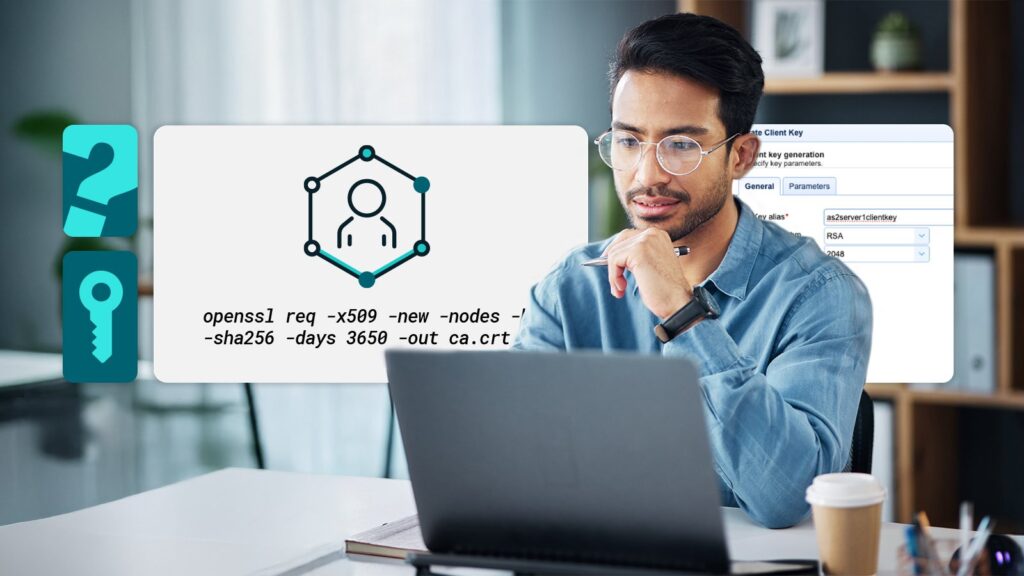
How to generate client certificates for SSL/TLS authentication
Learn more from the experts at JSCAPE by Redwood
Learn More
-

JSCAPE 2025.1: Streamlined security, file movement and trigger troubleshooting
Learn more from the experts at JSCAPE by Redwood
Learn More
-

5 ways JSCAPE ensures 24/7/365 security and compliance for banking file transfers
Learn more from the experts at JSCAPE by Redwood
Learn More
-

How to protect consumer data and ensure data security for banks with JSCAPE
Learn more from the experts at JSCAPE by Redwood
Learn More
-

The compliance imperative: why secure file transfers are non-negotiable in 2025
Learn more from the experts at JSCAPE by Redwood
Learn More
-

10 hidden costs of inadequate file transfer security
Learn more from the experts at JSCAPE by Redwood
Learn More
-

How to set up an FTP scheduler for windows
Learn more from the experts at JSCAPE by Redwood
Learn More
-

JSCAPE 2024.4: enhancements to security and SaaS
Learn more from the experts at JSCAPE by Redwood
Learn More
-

File transfer data breach risk: real or overstated?
Learn more from the experts at JSCAPE by Redwood
Learn More
-
Replace root path of the users using ReplaceUsersPath action
This custom trigger action is used to replace the users default root path.
Learn More
-
Replace path of all users using ReplaceUsersPath action
This custom trigger action is used to replace all users path.
Learn More
-

MFT servers explained: why your business needs one now
Learn more from the experts at JSCAPE by Redwood
Learn More
-
How to set up a HTTPS file transfer
Learn more from the experts at JSCAPE by Redwood
Learn More
-

9 best practices for secure document transfers in business operations
Learn more from the experts at JSCAPE by Redwood
Learn More
-

SaaS secure file transfer: Strategic guidance for enterprise organizations
Learn more from the experts at JSCAPE by Redwood
Learn More
-

What is MFA authentication and why it’s crucial for file transfer security
Learn more from the experts at JSCAPE by Redwood
Learn More
-

What is SSO and how does it work? a guide for file transfer professionals
What is Single Sign-On (SSO)?
Learn More
-

Why is an enterprise file transfer solution necessary?
Learn more from the experts at JSCAPE by Redwood
Learn More

Browse by category
-
(23)
-
(43)
-
(7)
-
(46)
-
(57)
-
(40)
-
(19)
-
(623)
-
(3)
-
(390)
-
(106)
-
(6)
-
(19)
-
(199)
-
(22)
-
(86)