Secure file transfers are extremely vital to enterprise-class business processes. Only a secure file transfer can ensure that the data exchanged between two trading partners is accurate, on time, unaltered, and safe from unauthorized disclosures.
For companies covered by regulations like HIPAA, PCI-DSS, SOX, GLBA, EU Data Protection Directive and others, which have stringent requirements for securing certain types of data, secure file transfers are a must-have.
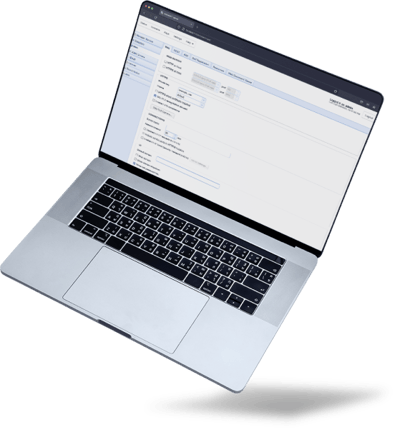

Compatible with any platform and any environment, JSCAPE supports a variety of trading partners using multiple types of protocols. The low-code/no-code workflow automation capabilities, REST APIs, and single pane of glass visibility into all processes and automations makes working with JSCAPE easy on your teams.
Should you need any help, our best-in-class support team is ready to respond, with global 24/7 response times under 15 minutes.

Fully functional free Starter license with support for up to 3 users

Authenticates users and machines in a transaction using mechanisms like usernames and passwords, public key authentication, digital signatures, LDAP, and Web SSO.

Ensures that specific files, directories, and other resources on the server are accessible only to those with the right authorization

Secures files as they travel through the network and protects them from unauthorized disclosures along the way. Data-in-motion encryption is usually provided through protocols like SSL or SSH.

Protects files from unauthorized disclosures while stored on the server. Data-at-rest encryption is usually implemented through technologies like OpenPGP.

Logs record file transfer events and provide auditors, tech support staff, or digital forensic experts a reliable digital trail to investigate if something goes wrong.

In highly regulated industries, certain types of information require exceptional levels of protection. DLP is a feature that automatically detects sensitive information and performs the necessary actions to secure it.

Integrates with several antivirus software and performs automated virus scans to ensure all uploaded files are free from malware.

Our experts will show you around, answer your questions and get you set up with a free, no-obligation trial of JSCAPE.